
Transfer iCloud Drive to Google Drive Using rclone on a Google Cloud VM

But you shouldn’t use !
Back in the day, I was a big fan of Dropbox to sync my files to “the cloud” from my local computer. It worked incredibly well. Several year ago, in an effort to reduce cost (after Dropbox raised prices), and to use subscriptions that I already had, I ended up moving all of my data over to iCloud Drive. It’s worked “ok” since then. There’s been bugs and syncing issues along the way, but Apple has introduced some nice features over the years, right in line with what Dropbox could do. Now in 2026, if you compare a “checkmark comparison” of iCloud Drive and Dropbox, you’d see both have a lot of the same features. Same could be said for Google Drive as well. Now I know there’s a whole plethora of people who don’t like those cloud options, stating they are “insecure”, and how “Google can read your files”. I don’t know what those people are doing to warrant that concern, but to me, Google already knows everything about you: your browsing history, your Google Map locations, your gmail content, everything. Granted, you are definitely “the product” in their ecosystem. But what’s the alternative? Completely ridding your life of Google is quite the undertaking, and replacing those apps and features you use everyday with something else takes on it’s own set of complications and risks. I mean, what GPS are you going to use? Apple Maps? Hardly.
Ok, so now that’s out of the way, I believe it’s time for me to move from iCloud Drive to something else, and I’ve picked Google Drive. Why’s that? Well, this past weekend, I ran out of space on my local MacBook Pro. iCloud Drive did the “right” thing of marking most of my files as “cloud only” in order to try and save space on my local device, but the MacBook finally did run out of space and it hung itself. I had things running on my MacBook which left those sessions as corrupted. I tried to clean everything up but things were still just “wonky”. So I decided to just re-load the MacBook with a fresh install of the latest version of MacOS. (There’s a few other reasons that led me down that path, but I won’t bore you with the details of those.)
The reload went flawlessly and was super simple. Now connect back to iCloud and start downloading the files that I need. That’s when things took a turn. Downloading from iCloud is taking absolutely forever. I was able to download some folders that I needed today, but it took most of the night for those folders to sync- and I was suprised to see the total space of those folders was around 6 1/2 GB in size. Something relatively that small should be able to be downloaded on a 1 Gb internet connection quite quickly, but iCloud Drive is taking it’s time, especially on projects / folders that have a lot of small files (like Xcode projects!). So I’m starting at my 350 GB+ iCloud Drive usage thinking how it would be almost impossible to download it due to how slow iCloud is syncing / downloading.
That’s what led me to just switching over to Google Drive. I use the Google Drive for Desktop app (https://support.google.com/a/users/answer/13022292?hl=en) already for both my personal account, and for my work account (on Google Workspace) and I literally never have a problem with it. Uploading multi- GB files, videos, folders, etc, is done quickly and painlessly.
Moving from iCloud Drive to Google Drive
So how do you migrate all data from iCloud Drive over to Google Drive? Well in a perfect world, you could just download everything from iCloud then move it to your Google drive folder, which will upload everything. But that won’t work with iCloud, since it’s taking forever to download and sync anything. While it might work, it would take days if not weeks to do this.
rclone has entered the chat
A better approach: meet “rclone” (https://rclone.org/). Rclone is a command line program to manage files on cloud storage. But instead of using it locally, spin up a temporary Google Cloud VM, install rclone, and let it handle the transfer over Google’s high-speed network. You can then delete the VM when you’re done and the whole thing costs less than a trip to your local coffee shop.
Why Not Just Use rclone Locally?
You absolutely can run rclone on your Mac and it will work. The problem is that there’s no server-to-server transfer between iCloud and Google Drive. rclone has to download each file from iCloud and then upload it to Google Drive. When you run this on your local machine, that’s your home internet bandwidth being consumed in both directions. And for us still at the mercy of cable internet, our upload speed is a precious commodity since it’s highly limited.
By running rclone on a Google Cloud VM, you get the benefit of Google’s data center network speeds, which are significantly faster than most home connections. This post is a how-to that I used to transfer my files using rclone.
What About Apple’s Data Transfer Tool?
Apple does offer a “Transfer a copy of your data” tool at privacy.apple.com, but it only supports iCloud Photos, Videos, and Apple Music. It does not transfer iCloud Drive files, so it won’t help here.
Prerequisites
Before you start, make sure you have the following:
- A Google Cloud account (the free tier works fine)
- The
gcloudCLI installed on your Mac - An Apple ID with two-factor authentication enabled
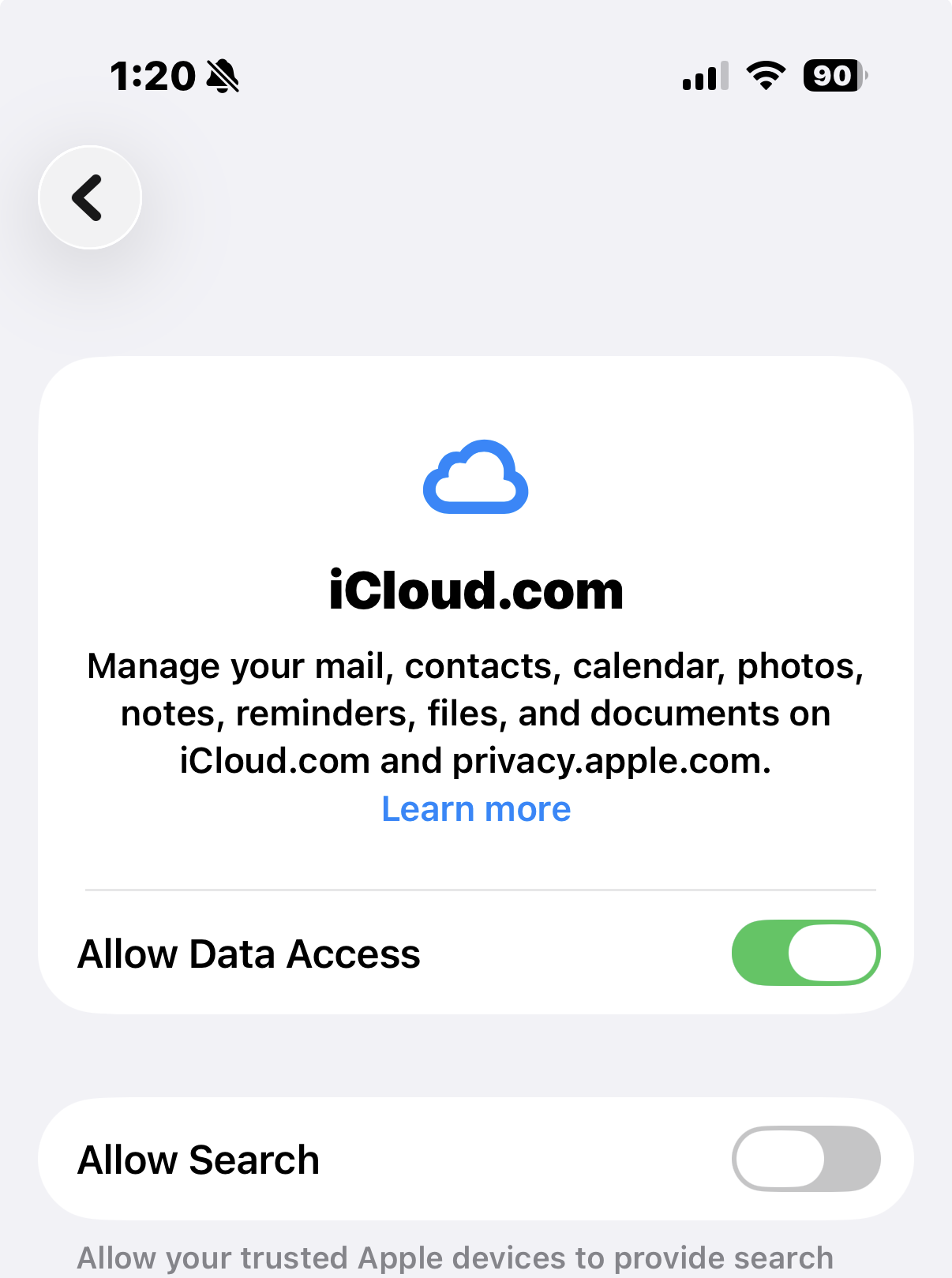
- On your iPhone/iPad: Settings → Apple Account → iCloud → iCloud.com → Make sure “Allow Data Access” must be turned ON
- Advanced Data Protection (ADP) must be OFF. If you get a “Missing PCS cookies” error later, this is likely the cause. After disabling ADP, you may need to wait several hours before rclone can connect.
iOS Settings showing Access iCloud Data on the Web toggle
Step 1: Install the gcloud CLI
If you don’t already have it, install the Google Cloud CLI with Homebrew via your terminal:
brew install google-cloud-sdkThen authenticate:
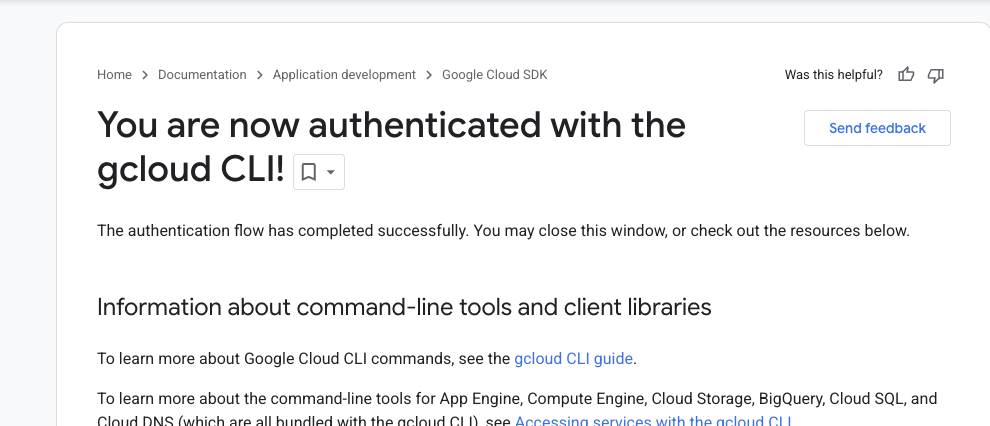
gcloud auth loginThis opens your browser to sign into your Google account.
Google Authenticated with gcloud CLI
Step 2: Create a Google Cloud VM
Create a project, then spin up a small VM (this uses a west coast location but feel free to change to another location based on this list https://docs.cloud.google.com/compute/docs/regions-zones):
gcloud projects create PROJECT_ID
  (replace PROJECT_ID with a unique name- has to be unique across all of Google Cloud)

gcloud config set project PROJECT_ID
  (replace PROJECT_ID with what you created above)

gcloud services enable compute.googleapis.com
  (This is required before you can create VMs and isn't enabled by default.)

If you get a billing error, then setup your billing via the Google Cloud Console at: https://console.cloud.google.com/billing/
Then retry the above command.

To make the virtual machine:
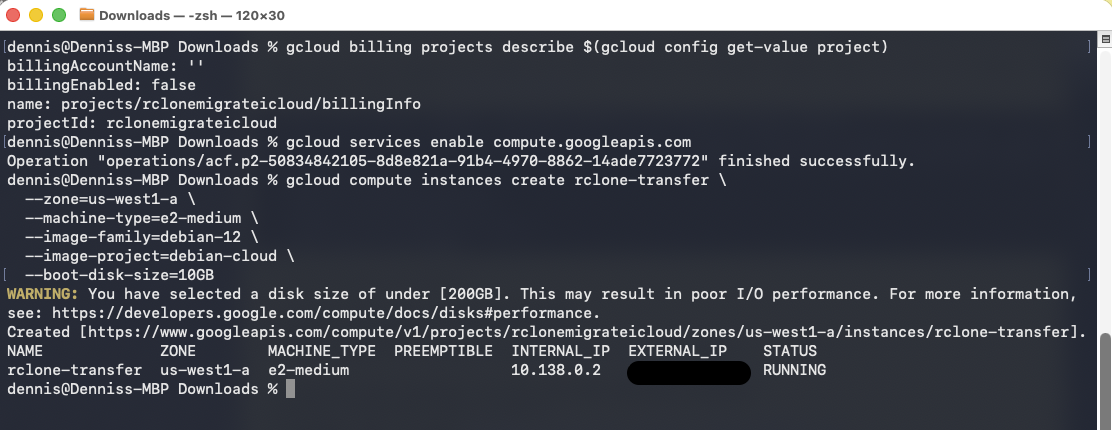
gcloud compute instances create rclone-transfer \
  --zone=us-west1-a \
  --machine-type=e2-medium \
  --image-family=debian-12 \
  --image-project=debian-cloud \
  --boot-disk-size=10GB
An e2-medium (2 vCPU, 4GB RAM) is more than enough for this. The 10GB boot disk is fine since rclone streams files — it doesn’t store them locally on the VM.
Step 3: SSH into the VM
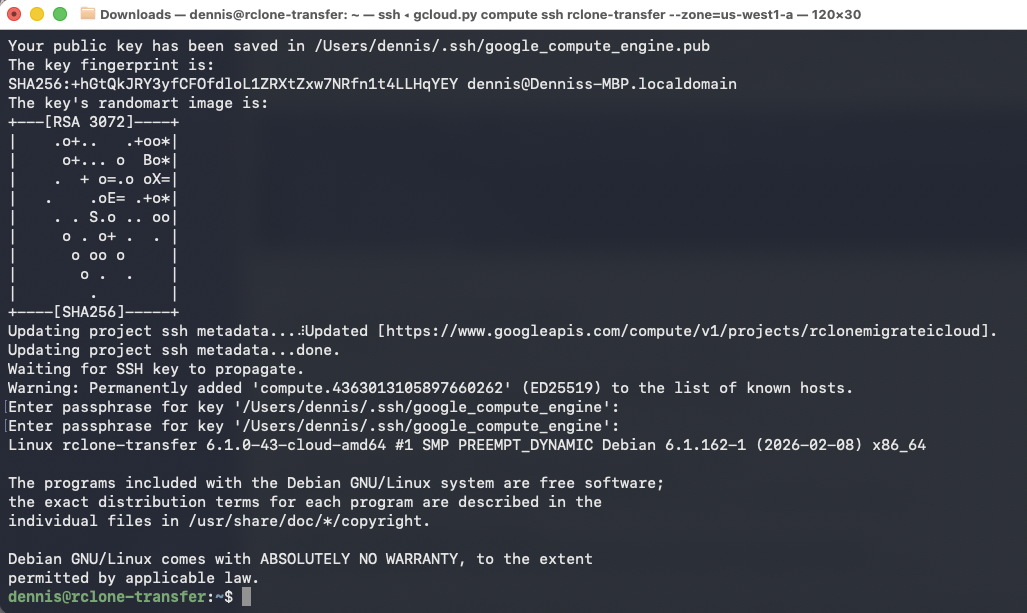
gcloud compute ssh rclone-transfer --zone=us-west1-aConnecting via SSH to the Google VM
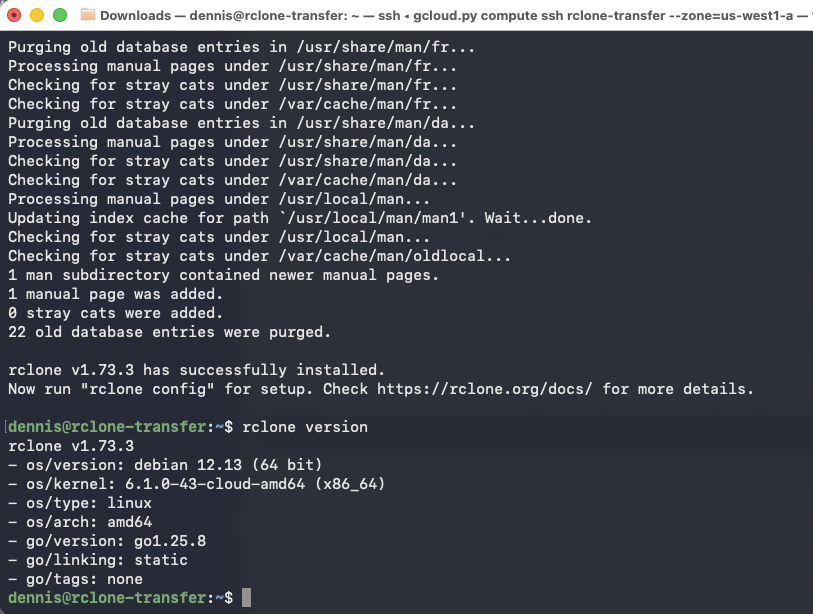
Step 4: Install Unzip and rclone on the VM
Once you’re connected to the VM:
sudo apt update && sudo apt install -y unzip

curl https://rclone.org/install.sh | sudo bash

rclone version
Make sure the version is 1.69 or later — that’s when iCloud Drive support was added.
Installing rclone and showing version
Step 5: Configure the iCloud Drive Remote
Run the rclone configuration wizard:
rclone configChoose “n” for “New Remote”
Follow the prompts:
name> iclouddrive
For "Storage", choose the number for iCloud Drive from the list (mine was 65)
apple_id> [email protected]
Choose to type in your own password, and enter your regular Apple ID password when prompted (not an app-specific password), then enter the 2FA code sent to your device.
Note: If you’re like me and have a “@me.com” account, I guess there’s an issue with using that, so use “@icloud.com” instead. If you need to delete the icloud rclone configuration in order to make that change, use this command and then repeat the step 5 above:
rclone config delete iclouddriveNote: The iCloud trust token is valid for 30 days. If you need to come back and run the transfer again later, use
rclone reconnect iclouddrive:to re-authenticate.
Step 6: Configure the Google Drive Remote
Since the VM doesn’t have a browser, you’ll authorize Google Drive from your local Mac.
Start the config on the VM:
rclone configname> gdrive
Storage> drive
client_id> # leave blank or use your own OAuth client ID
client_secret> # leave blank
scope> drive
root_folder_id> # leave blankWhen it asks “Use web browser to automatically authenticate?”, answer n.
It will display a command like:
rclone authorize "drive" "eyJ..."On your local Mac, open a new terminal and run that exact command:
rclone authorize "drive" "eyJ..."Your browser opens to authorize rclone with your Google account. Once approved, rclone prints a token block in your terminal.
Copy the entire token and paste it back into the VM’s rclone config prompt.
Step 7: Verify Both Remotes
Test that both remotes are working:
rclone lsd iclouddrive:
rclone lsd gdrive:
You should see your iCloud Drive and Google Drive folders listed.
Step 8: Dry Run
Before transferring anything, do a dry run to preview what will be copied:
rclone copy iclouddrive: gdrive:icloud-backup --dry-run -vThis shows you every file that would be transferred without actually doing anything.
Step 9: Start the Transfer
Use tmux so the transfer survives if your SSH connection drops:
sudo apt install -y tmux
tmux new -s transfer
Then kick off the transfer:
rclone copy iclouddrive: gdrive:icloud-backup -P -v --transfers 8| Flag | What it does |
|---|---|
-P | Shows real-time progress |
-v | Verbose logging |
--transfers 8 | 8 parallel file transfers (the VM can handle it) |
To detach from tmux and leave it running in the background, press Ctrl+B then D. You can safely close your SSH session and reconnect later.
To reattach:
tmux attach -t transferTransferring Specific Folders
If you don’t want to copy everything, you can target specific folders:
rclone copy iclouddrive:Documents gdrive:icloud-backup/Documents -P -v --transfers 8
rclone copy iclouddrive:Projects gdrive:icloud-backup/Projects -P -v --transfers 8
Step 10: Verify the Transfer
Once the transfer completes, you can verify file counts:
rclone size iclouddrive:
rclone size gdrive:icloud-backup
The file counts and total sizes should match.
Step 11: Delete the VM
Once you’ve confirmed everything transferred successfully, clean up the VM so you don’t keep getting charged:
exit
gcloud compute instances delete rclone-transfer --zone=us-central1-a
Cost
An e2-medium VM in us-central1 costs approximately $0.034 per hour. Even if your transfer takes 24 hours, that’s under $1. There are no egress charges for data coming into Google Cloud, and iCloud doesn’t charge for downloads.
Troubleshooting
“Missing PCS cookies from the request” — Advanced Data Protection is still enabled on your Apple account. Disable it in Settings → Apple Account → iCloud → Advanced Data Protection, then wait several hours before trying again.
iCloud 2FA prompt not appearing — Make sure your Apple device is nearby and connected to the internet. The 2FA code is sent as a push notification.
Google Drive 403 errors — If you’re using the default rclone OAuth client, you may hit rate limits on large transfers. Consider creating your own OAuth Client ID in the Google Cloud Console under APIs & Services → Credentials.
SSH disconnected mid-transfer — If you used tmux as recommended, just SSH back in and run tmux attach -t transfer. The transfer continued in the background.