
Microsoft Office 365 - Configure a User Password to Never Expire
This article will show you how to configure a user password to never expire on the Office 365 platform.
Install the PowerShell cmdlets for Office 365
First you will need the PowerShell cmdlets installed onto your computer. To install them, please follow the instructions here: http://technet.microsoft.com/en-us/library/hh974317.aspx
Set Windows Powershell Credentials
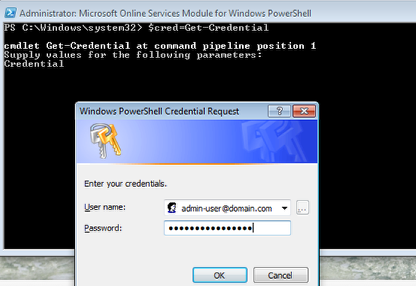
To connect Windows Powershell to Office 365, run the following cmdlet from the Powershell window (which you installed in the above step). $cred=Get-Credential After running that command, you will get a login window. Type in an “admin” level user for Office 365 (in the format of username@domain.com) and select “Ok”.
Connect Windows Powershell to Office 365
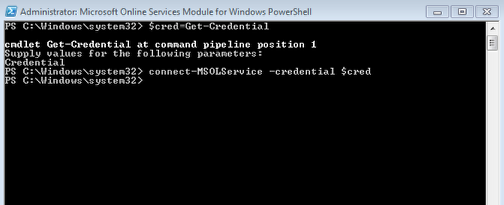
Next, run the following cmdlet: connect-MSOLService -credential $cred If it connects successfully, no messages will be should be shown, just a new line as shown in the above screenshot.
If You Get an Error …
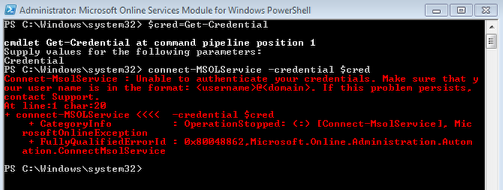
If the credentials you’ve provided are incorrect, you will get a screen like the one above. If this happens, check your credentials and re-run the cmdlets above.
Find Out Whether a Password is Set to Never Expire
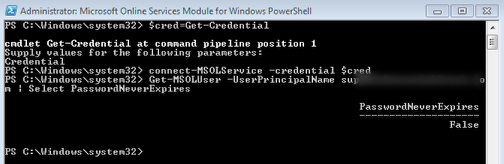
To see whether a single user’s password is set to never expire, run the following cmdlet by using the user ID (in the format of username@domain.com) of the user you want to check: Get-MSOLUser -UserPrincipalName
Set a Password to Never Expire
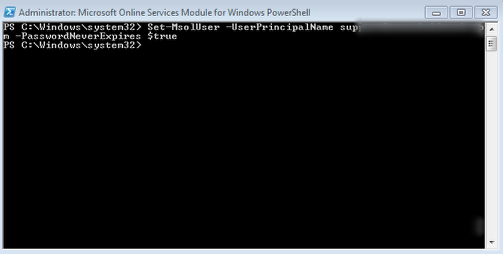
To set the password of one user to never expire, run the following cmdlet by using the user ID of the user (in the format of username@domain.com): Set-MsolUser -UserPrincipalName
Set a Password to Expire (To Undo Above)
To set the password of one user so that the password does expire, run the following cmdlet by using the user ID of the user: Set-MsolUser -UserPrincipalName